
The problem
Take off
your headset.
- Stop what you are doing.
- Reach for your phone.
- Leave the VR experience.

PeekXR for Meta Quest
Check your phone without taking off your headset.
Stay in VR.
The problem

The PeekXR way
iPhone control
Use Meta Quest to move the pointer, click, hold and drag on your iPhone through AssistiveTouch.
Uses iPhone AssistiveTouch. Multi-touch and protected content are not supported.
How it works
No account maze. No cloud hand-off. Pair both devices, confirm what you see, then start the system broadcast.
Open PeekXR on both devices, scan the one-time QR code shown in Quest, or enter the 4-digit PIN code.
Confirm the same six-digit code on iPhone or iPad and Quest.
Use Apple’s visible ReplayKit picker to begin the screen broadcast.
Your screen and permitted app audio appear in a resizable Quest window.
A bigger way to watch
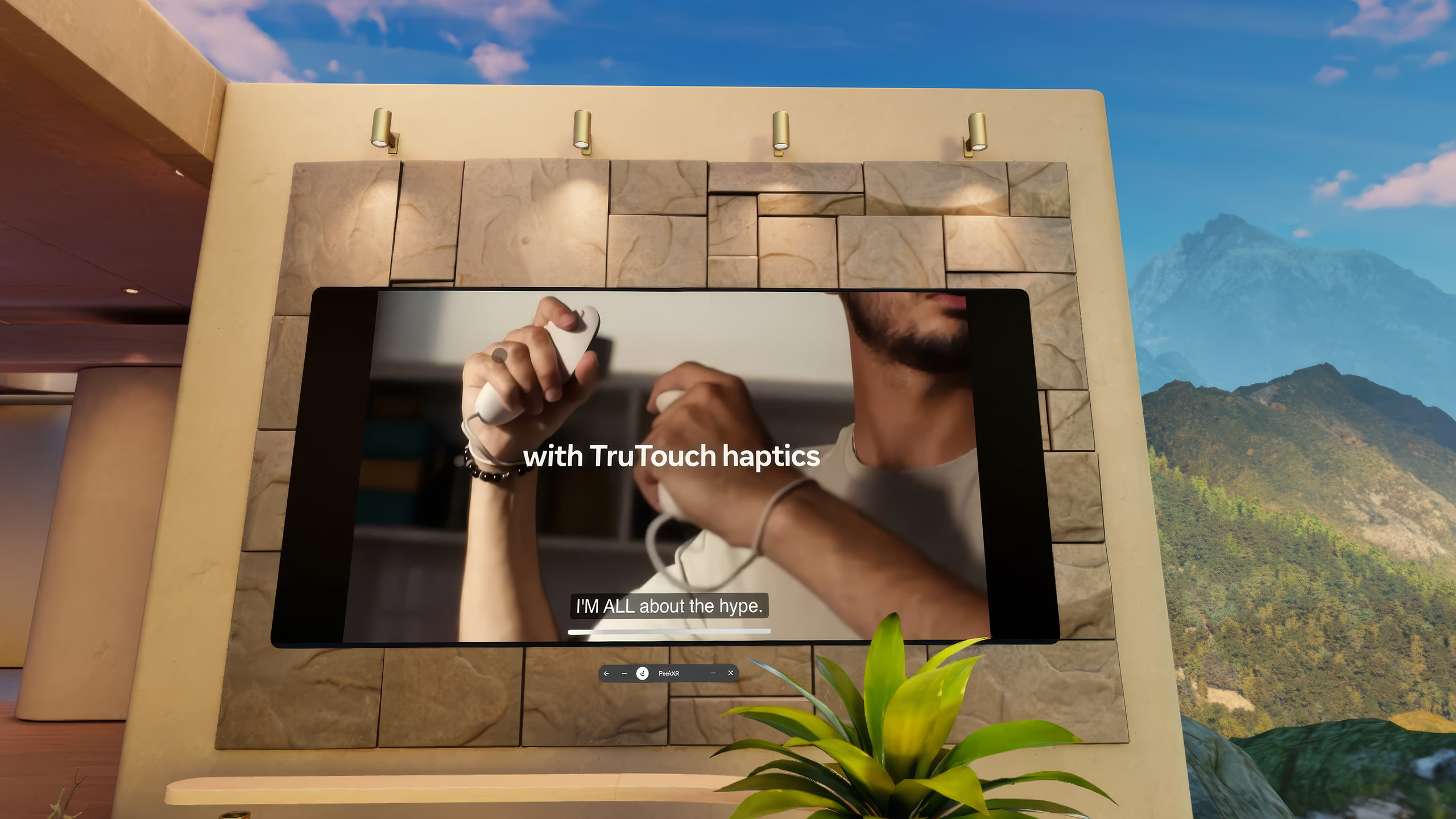
Watch compatible videos on a large virtual screen. Keep your iPhone quiet and adjust the listening volume using your Quest controls.
Enjoy the sound in Quest without playing it from your iPhone speaker.
Turn the listening volume up or down using your Quest controls.
Some apps and DRM-protected content may block screen or audio sharing and may appear black or silent.
Built for privacy
The local network is treated as hostile. Every session starts fresh, proves both devices match, and fails closed if trust cannot be established.
Explore the safeguardsMedia travels directly on your Wi-Fi. The MVP has no cloud relay.
Ephemeral keys, authenticated signaling and encrypted WebRTC media.
No sign-up, telemetry profile or remembered peer in the current milestone.
Screen and QR camera frames stay in memory and are immediately discarded.

QR expiry
Visual confirmation
Session keys
On mismatch
System requirements
PeekXR works best with the following setup.
A supported iPhone or iPad running a compatible iOS or iPadOS version, with screen sharing allowed.
A supported Meta Quest headset with camera access for connecting the devices.
Both devices should use the same stable Wi-Fi network. Internet access is not required for local streaming.
Turn on Bluetooth and AssistiveTouch only if you want to control your iPhone from Quest.
Built for today
A supported iPhone or iPad, Meta Quest, and both devices on the same Wi-Fi network.
View your phone in Quest, or optionally control your iPhone with AssistiveTouch. Screen viewing works without control.

PeekXR